


. . by skm
Wednesday, February 1, 2017
Saturday, December 10, 2016
 1:34:00 PM
 tips
tips No comments

At first go to the link CLICK HERE TO DOWNLOAD and down load a Nice Software. Software size 12MB. The software name anvi folder locker.

Install this. After install show below :
 Now open anvi locker and show:
For creating your password fill the form by password, confirm
password and email. Then show:

Now look top and click add button then show below:

Now select your file or folder then click open button. Now
your button is locked and hided. Then click the point show in the below picture.

Now you get following options:
1. Unprotect= no change anything
2. Hide=hide file only
3. Lock= show file or folder but cannot open
4. Read only= open the file but cannot delete or change
anything
5. Hide & lock= same to hide
6. Password= locked by password. You can open after entering
correct password.
You choose any options from here.

Suppose you lock a
folder (named others) using password option.

Now click this folder (others) for open. Then need password.
Show below:

Enter password then
open the folder or file.

The Folder Is Opened & Unlocked. Now Enjoy This.
Click Here For View This Process Practically With a Video
By INFO MELA 24
Monday, December 5, 2016
- 3:51:00 PM
- tips
- No comments
CHECK GRAMEENPHONE CALL LIST BY
MOBILE AND PC:
|
1. At first,You need to Open a Browser and viste https://webserv.grameenphone.com/ecare/faces/GpUserRegistration.jsp
. or click to visit this link. You will see a form there.

2. Then fill up all the blank
boxes with the original information
. Enter your Grameenphone number after 88017, your name and your
email ID .Put a tick mark in the box to agree to the Terms of use. The form
will look like the below picture. .
All work done, then click create my
Account.

3. Now, you will get a notification like this:


4. Now, look at your phone and collect the
password that you have just received through an SMS from GP.
5. Now, login here with the phone number in 088017xxxxxxxx
format and the password you have just got in your phone in an SMS.
6. Enter your GP number and password and click login option.
After login your eCare account, GP recommends to change your password. To
change your account password first, Enter your old password, Then enter a new
password and Re-enter the same password. Then click the password change option.
After successfully changing password you will see the Home screen same the Screen
Shot.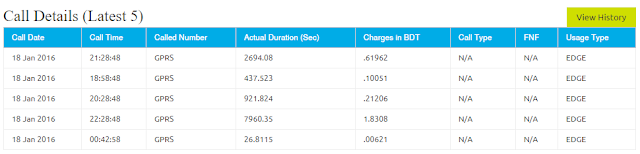

7. You will see View History button
in the upper right corner of the list.
Click it. Then you will see a field like this.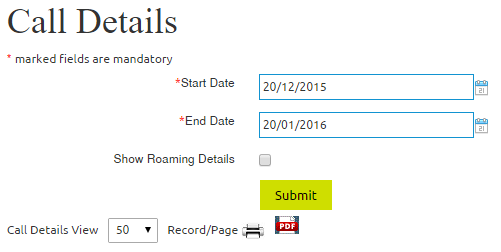

8. Then select the Date last 30 days and click the Submit option.
9. A pop-up window will come up. Read it and
click on OK button.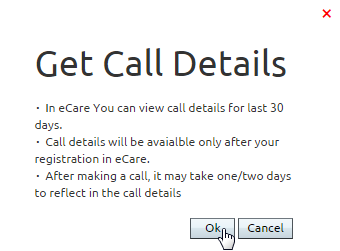
10. That’s all. Now, you will be able to see
your call details just like this.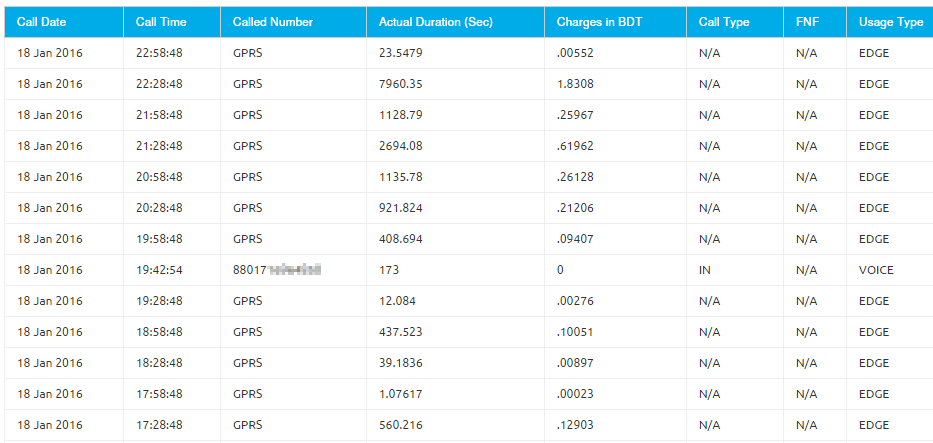
ARE YOU NOT ABLE TO
SEE THE CALL LIST?
|
Then, you might have to wait for 1 month
from registration in the eCare system. Because the system will start
remembering your call list from now and it will be visible after 1 month.
WAITED
1 MONTH, STILL CAN’T SEE THE CALL LIST?
|
Click Here For View Practically In a Bangla Video
by
Friday, November 11, 2016
- 2:12:00 PM
- Unknown
- সার্ভিস
- No comments
কিভাবে
দেখবেন আপনার Lover এর ফোন কল
লিস্ট এবং কিভাবে ধরতে
পারবেন আপনার মোবাইল চোরকে?
হ্যা এটা সত্যিই সম্ভব।
হয়তো অনেকেই
অনেক অ্যাপস ডাউনলোড করেছেন
কিন্তু সফল হতে পারেন
নি। কারন
সকল অ্যাপসগুলো ভূয়া।
করন একমাত্র প্রশাসন ছারা কারো কল
লিস্ট দেখার ক্ষমতা কারো
নাই।
তবে এই প্রক্রিয়াটি বাংলালিংকের
অফিসিয়াল। তাই
এটা 100% কার্যকর।
আপনার
lover আর কার কার সাথে
কথা বলে এটা জানতে
চান?
আপনার
মোবাইলটি কে চুরি করেছে
তাকে খুজে পেতে চান?
তাহলে..............................................
এখানে
দেখানো পরবর্তি ধাপ অনুসরন করুন:
পুরো কাজটি মোবাইল দিয়েই করা যাবে।
পুরো কাজটি মোবাইল দিয়েই করা যাবে।
1. প্রথমে
একটি gmail id খুলে নিন
2. google Play Stor এ প্রবেশ করুন
এবং gmail id দিয়ে
লগ ইন করুন।
3. এবার google Play Stor এ My Banglalink লিখে
সার্চ করুন এবং এটি
ইনস্টল করুন।
4. ইনস্টল
করার পরে ওপেন করলে
নিচের ছবির মত দেখাবে।


6. আপনি আপনার অথবা কাংখিত নাম্বারটি প্রবেশ করান এবং Verify mobile number ক্লিক কিরুন ।

পাবেন সেটা আপনার দায়িত্ব। তবে একবার যদি কোডটি আনতে পারেন তবে পরবর্তিতে আর লাগবেনা।
কোডটি প্রবেশ করালে নিচের মত আসবে...


দেখুন কললিস্ট এর অপশন চলে এসেছে। এখান থেকে আপনি সবকিছু দেখতে পারবেন। তবে একটা কথা ..... নাম্বারটি যদি আপনার লাভারের হয় তবে ভূলেও FNF ক্লিক করবেন না। কারন আপনি তার FNF চেক করার সাথে সাথে তার
মোবাইলে এস এম এস এর মাধ্যমে FNF গুলো চলে যাবে। তখন সে বুঝে ফেলেতে পারে যে কেউ তার নাম্বার চেক করছে।
এবার আসুন চোর কিভাবে ধরবেনঃ
আপনার যদি My Banglalink এ একাউন্টা আগেই রেজিস্ট্রেশন করা থাকে এবং চোর যদি চুরি করার পরে আপনার সিম দিয়ে কথা বলে তবেই চোর আপনি নিজে নিজে ধরতে পারবেন।
বেশির ভাগ চোর চুরির পরে মোবাইলে টাকা থাকলে তা খরচ করে । আর তার জন্য আবশ্যই তার পরিচিত কারো সাথেই কথা বলে থাকবে। আর এটাই তার বড় ভুল। কিন্তু সেয়ানা চোর হলে কিছুতেই কথা বলতে যাবে না।
এখন আপনি তো আপনার পাসওয়র্ড দিয়ে যেকোন সময় আপনার কললিস্ট চেক করতে পারেনই। তাই সাথে সাথে সিম না তুলে দুএক দিন অপেক্ষা করেন আর আপনার কললিস্ট চেক করতে থাকেন । দেখেন চুরি হওয়ার পরের সময়ের কোন নাম্বার আপনার কললিস্টে আছে কিনা? কললিস্টে কখন এবং কত সময় ধরে কথা বলেছে তা দেয়া থাকে।
এবার যে নাম্বারে কথা বলেছে সে নাম্বার টি এমন একটি মোবাইলের ফোনবুকে সেভ করবেন যেটাতে ইমো চালু ইছে।তবে একটা কথা সেভ করার সময় আপনি কোন নাম দিয়ে সেভ করবেন না। কারন তাহলে ওর নাম জানতে পারবেন না বরং আপনি যে নাম দিয়ে সেভ করবেন সে নামই আসেবে। যদি নাম ছারা সেভ করেন তবে ঐলোক যে নামে ইমো খুলেছে ঐ নামটা আসবে। সেভ করার সাথে সাথে দেখবেন আপনার ইমোতে একটি নোটিফিকেশন আসছে ওর ইমো থেকে। তবে নাম্বার সেভ করার আগে অবশ্যই ডাটা কানেকশন চালু করে নেবেন।
এবার ওর নাম এবং ছবি দেখে নিন। এবার ওকে খুজে বের করে চাপ দিন যে , হয় তুমি চুরি করেছ অখবা তুমি জানো কে চুরি করেছে।
আর ইমো দিয়ে যদি খুজে না পান তবে আসুন অন্য পথে। আপনার এলাকায় যে কাস্টমার কেয়ার আছে বা যেসব দোকানে সিম রিপ্লেসমেন্ট করে তাদের কাছ থেকে নাম্বার টি কোন আইডি নাম্বার দিয়ে রেজিস্ট্রেশন করেছে সেটা জেনে নিন (যদি সে দেয়)। এবার আইডি নাম্বার নিয়ে চলে যান আপনার এলাকার নির্বাচন অফিসে সেখান থেকে ঐ আইডির পুরো তথ্য আপনি পেয়ে যাবেন । এবং চলে যান তার ঠিকানায় ধরে ফেলুন আপনার মোবাইল চোর।
বিঃদ্রঃ বাংলালিংক ও নির্বাচন অফিসের জিডি বা প্রশাসনের অনুমতি ছারা এই সকল তথ্য শেয়ার করার অনুমতি নেই।
ভালো লাগলে অবশ্যই পোস্টটি শেয়ার করুন ।
For more Apdate Like this Page: Like This Page
Subscribe to:
Posts (Atom)


